
Start here
Signing in, finding your way around and getting help — the same for everyone.
Open your school’s page
Every school on OS for Schools has its own address, such as yourschool.osforschools.com. Your school gives you this address, often on a notice, in a message or by SMS. Open it in any web browser — Chrome on a computer or phone works best.
Sign in
Type your email address, your student or employee ID, or your phone number — whichever your school gave you.
Type your password.
Tick Remember me only on a phone or computer that is yours alone.
Press Sign In. You arrive at your own home screen, called My Workspace.
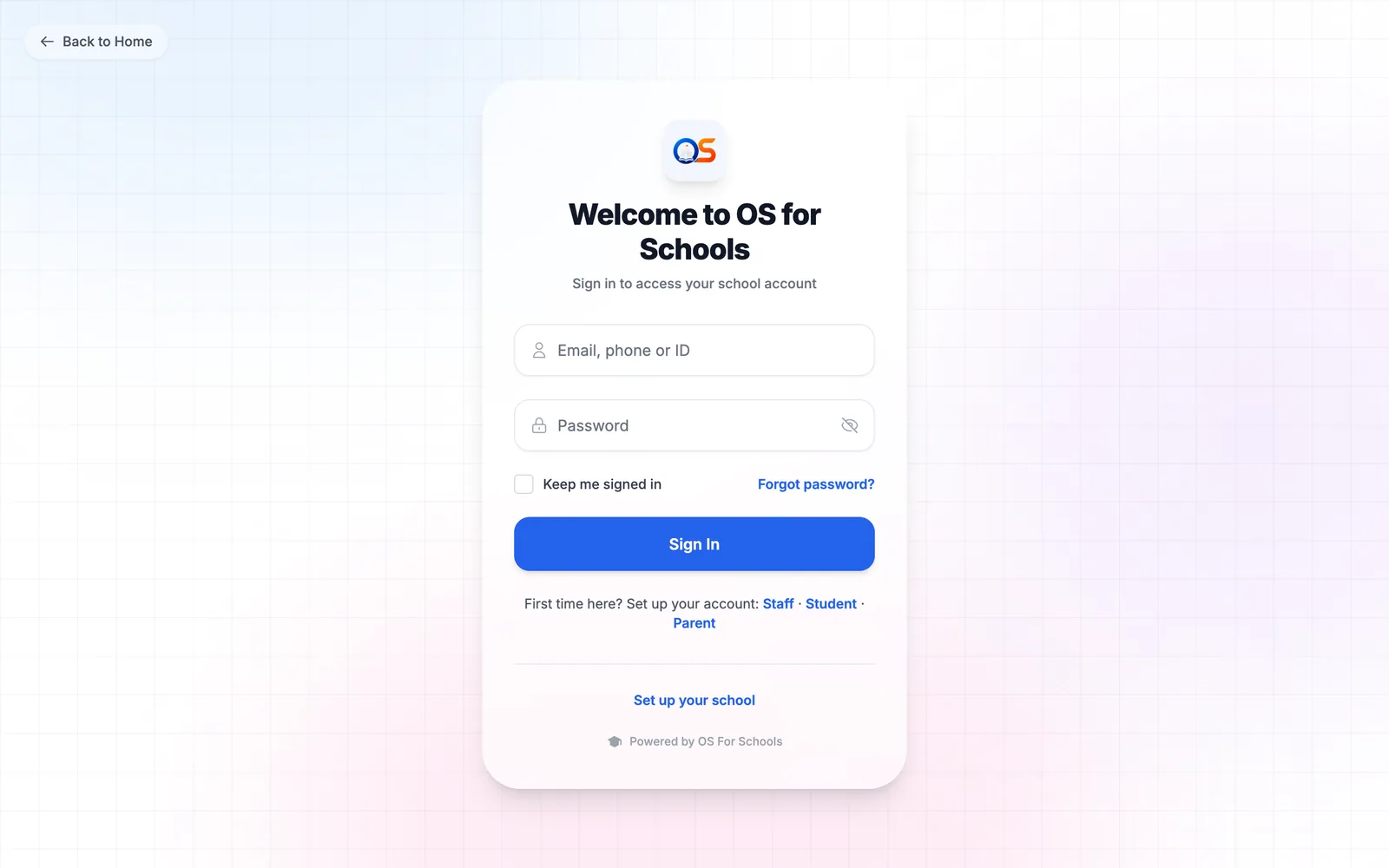
The first time you sign in, you may be asked to choose your own password. Pick one you have not used anywhere else, at least eight characters long.
Your home screen
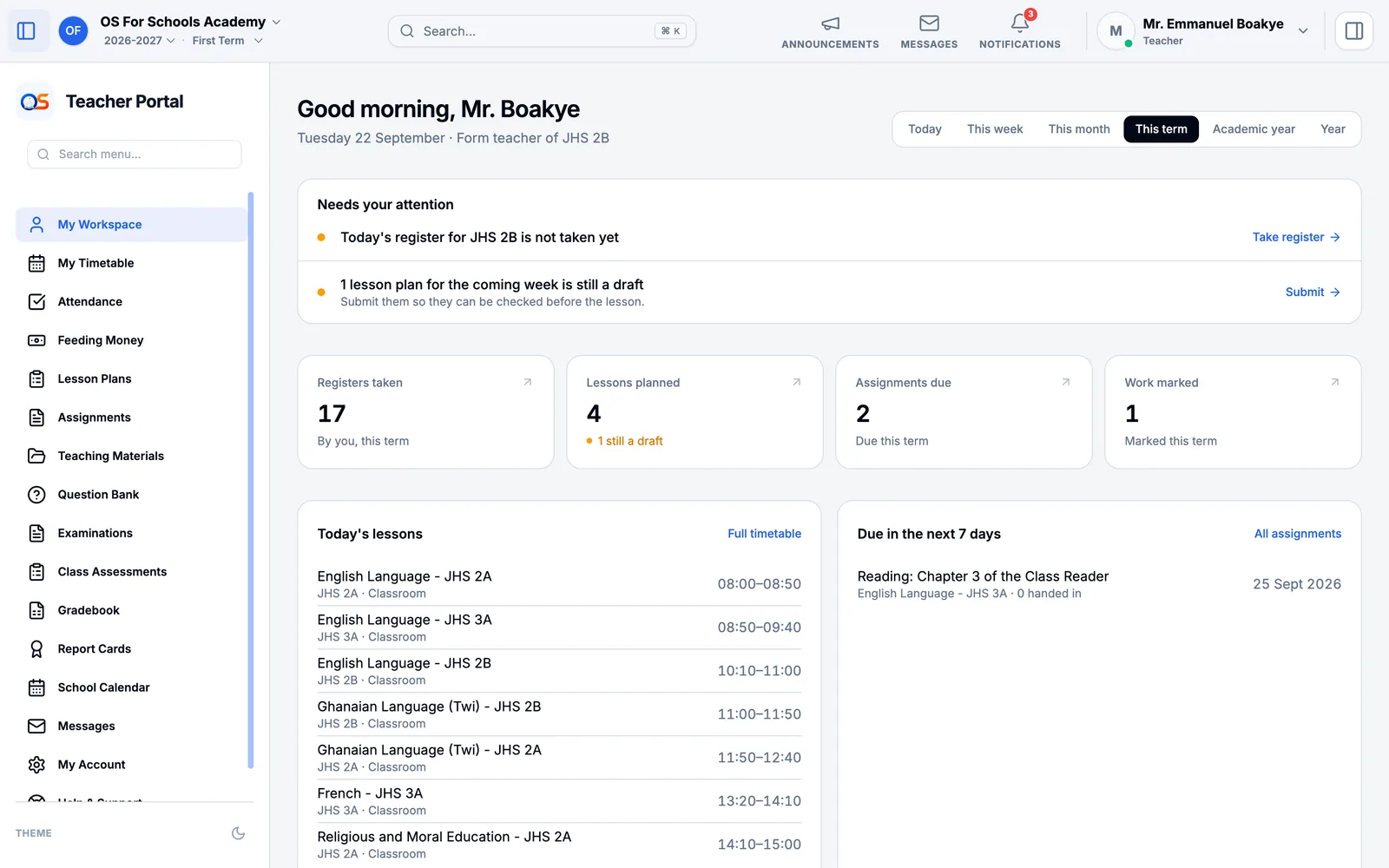
My Workspace shows what matters to you today, and nothing else. A teacher sees today’s lessons and registers; a bursar sees the day’s fees; a parent sees each child. The numbers are live: they change as the school’s work is done.
Find anything
The search box at the top of every page finds a pupil, a member of staff, a parent, a class, a course, a library book or a fee bill — type a few letters of a name or a number. On a computer, press Ctrl and K together (⌘ and K on a Mac) to jump to it from anywhere. You only ever find what your job lets you see.
Messages and notifications
- The bell at the top of the screen shows notifications — a bill issued, a report card published, a leave request approved. A number on the bell tells you how many are new.
- Messages holds private conversations about a pupil. A teacher or the school office writes to a parent; the parent is told, and replies in the same conversation.
- Announcements from the school — a PTA meeting, a holiday, a fees reminder — appear on your home screen and on the Announcements page.
Your account
Open My Account from the menu, or press your picture or initials at the top right.
- Profile
- Your name, photo and phone number.
- Password & Security
- Change your password, add two-step sign-in, and sign out of other devices.
- Notification Preferences
- Choose which notifications reach you, and how.
- Appearance
- Light or dark screens, and the colours you prefer.
- Help & Support
- This manual, and a way to ask for help or report a problem.
Use it on your phone
OS for Schools works in your phone’s browser. You can also add it to your home screen, so it opens like an app:
- Android (Chrome): open your school’s page, press the three dots at the top right, then Install app or Add to Home screen.
- iPhone (Safari): open your school’s page, press the Share button, then Add to Home Screen.
When a new version is available
We improve OS for Schools often. When a new version is ready, a message appears saying so, with a Refresh button. Press it at a convenient moment — finish what you are typing first. If a page ever looks out of date, close every OS for Schools tab and open it again.
Getting help
- Help & Support, at the end of your menu, opens this manual and lets you send a question or report a problem to the people who run OS for Schools.
- For your account — a forgotten password, a missing page, a wrong name — your school’s IT administrator can help first.
- Locked out completely? Open osforschools.com/support from any browser: it works without signing in.